


Introduction: The Temptation and Threat of Public Wi-Fi
The modern world has become entirely dependent on constant connectivity, transforming readily available public Wi-Fi—found in airports, cafes, libraries, and hotels—into an almost irresistible convenience for travelers, remote workers, and casual users alike. This free and accessible internet access allows individuals to seamlessly check emails, conduct urgent business, or upload vacation photos without depleting their mobile data plans. However, this seemingly benevolent convenience harbors one of the most significant and often underestimated threats to digital security today, as these open networks are inherently unencrypted and provide an easy entry point for malicious actors. Connecting to public Wi-Fi is akin to broadcasting your personal data across an open forum, making you a prime target for sophisticated cyber attacks like packet sniffing and Man-in-the-Middle (MITM) attacks.
The vast majority of public networks lack the essential security protocols of a private home or office connection, creating a fertile ground for hackers to intercept usernames, passwords, financial details, and sensitive communications as the data travels unprotected. The perceived anonymity of a bustling cafe offers little actual protection when the traveler fails to implement robust protective measures. Therefore, protecting your data and devices while using public Wi-Fi is not a matter of paranoia, but a critical necessity for maintaining privacy and preventing identity theft or financial fraud while on the go.
Mastering the art of safe public connectivity requires adopting a strategic, layered defense that leverages smart habits, specialized software, and proactive security protocols. This extensive guide is designed to empower you with the essential knowledge needed to navigate this digital minefield confidently. We will meticulously dissect the specific risks associated with open networks, detail the indispensable role of Virtual Private Networks (VPNs), and cover the vital configurations necessary for securing your devices, ensuring your travels remain both connected and completely secure.
1. Understanding the Risks: Why Public Wi-Fi is Dangerous
To properly defend your devices, you must first understand the specific, technical ways in which unsecured public networks are leveraged by hackers to steal your information. The dangers are far more complex than simple password theft.
The perceived anonymity of a crowd offers zero protection from cyber threats.
A. The Man-in-the-Middle (MITM) Attack
The most prevalent threat is The Man-in-the-Middle (MITM) Attack. A hacker positions their device between yours and the access point, secretly intercepting, reading, and potentially altering all data transmitted between the two points.
The user is entirely unaware that their supposedly secure connection is being monitored and compromised by an unseen third party.







B. Packet Sniffing and Eavesdropping
Public Wi-Fi enables simple Packet Sniffing and Eavesdropping. Because the network traffic is often unencrypted, malicious actors can use readily available software to capture and analyze data packets, extracting sensitive information like login credentials.
Anyone on the same network can potentially view the unencrypted activity of others.
C. Rogue Access Points
Be aware of Rogue Access Points. Hackers set up fake Wi-Fi networks with enticing, familiar names (e.g., “Airport Free Wi-Fi” or “Starbucks Guest”) to trick users into connecting to their controlled, malicious network.
Once connected, the hacker has full, immediate access to the victim’s device and data flow.
D. Session Hijacking
A sophisticated threat is Session Hijacking. If a website or service uses cookies for session management without proper encryption, a hacker can steal the session cookie and impersonate the logged-in user, gaining access to their account.
This can bypass the need for the hacker to even know the user’s password.
E. Malware and Phishing Delivery
Unsecured networks can facilitate Malware and Phishing Delivery. Some compromised or fake public networks are configured to silently redirect users to malicious login pages or prompt them to download harmful software disguised as necessary updates.
The user’s device can be infected before they even notice anything is wrong.
2. The Indispensable Role of the VPN
A Virtual Private Network (VPN) is the single most critical defense against the threats posed by public Wi-Fi, creating a necessary layer of encryption that makes your data unreadable to hackers.
A reliable VPN is the non-negotiable insurance policy for digital travel.
F. Mandatory Data Encryption
The primary function of a VPN is Mandatory Data Encryption. It creates a secure, encrypted tunnel between your device and a remote VPN server, scrambling all incoming and outgoing data.
Even if a hacker intercepts the data using a packet sniffer, all they see is useless, indecipherable code.
G. Masking Your IP Address
A VPN succeeds in Masking Your IP Address. It replaces your device’s actual IP address with the IP address of the VPN server, making it virtually impossible to track your physical location or your identity.
This adds a vital layer of anonymity to your online activities on public networks.
H. Circumventing Geographic Restrictions
A secondary benefit is Circumventing Geographic Restrictions (Geo-blocking). By connecting to a server in your home country, you can securely access region-locked banking, streaming, and content services while abroad.
This ensures you can handle necessary financial matters securely and without disruption.
I. Choosing a Premium, Trusted Provider
Insist on Choosing a Premium, Trusted Provider for your VPN service. Free VPNs often have slow speeds, limited features, and sometimes even compromise user privacy by logging and selling data.
Research providers known for no-log policies, strong encryption protocols, and global server coverage.
J. Verifying the Kill Switch Feature
Ensure your VPN app includes and has activated The Kill Switch Feature. If the VPN connection suddenly drops for any reason, the kill switch automatically halts all internet traffic, preventing your unencrypted data from leaking onto the public network.
This is a critical failsafe against brief, vulnerable connection lapses.
3. Device Configuration Before Connecting
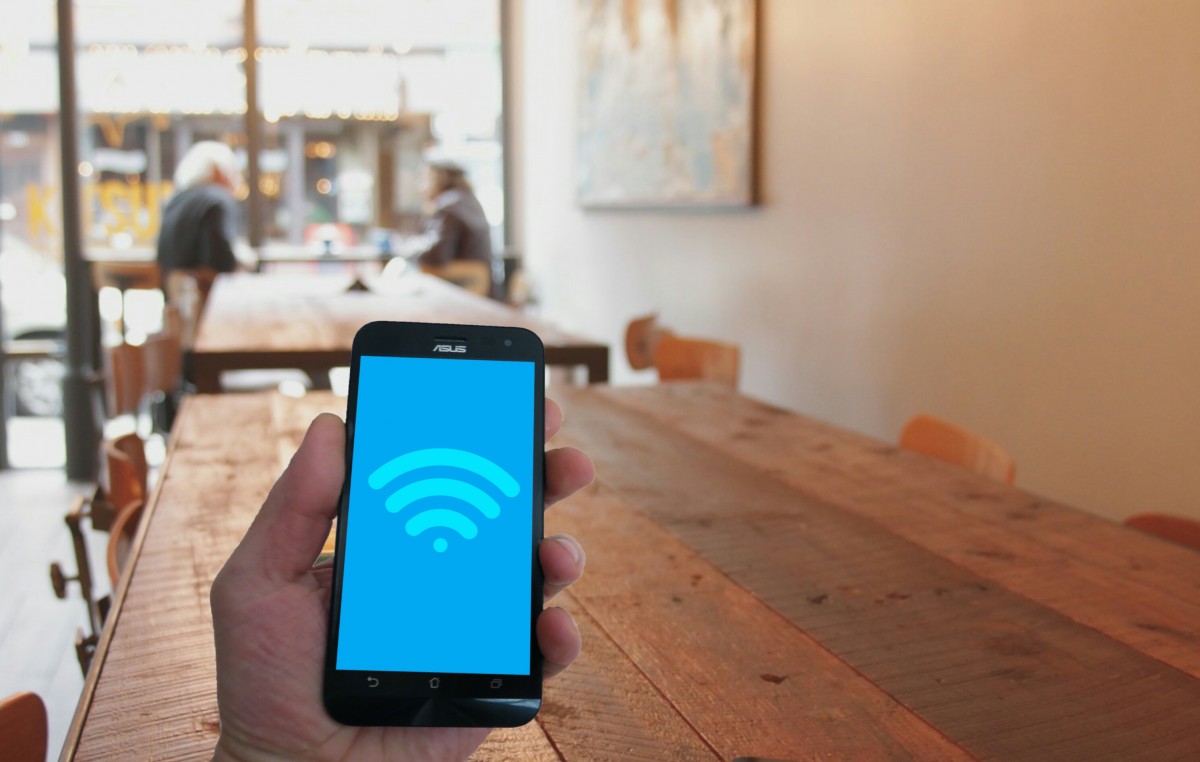
Before physically joining any public Wi-Fi network, travelers must adjust their device settings to minimize local exposure and block potential incoming threats from other users on the same network.
Proper configuration creates a fortress around your device before you open the internet door.
K. Disabling Automatic Connection
Always focus on Disabling Automatic Connection for Wi-Fi networks. This prevents your device from passively joining random networks without your explicit permission, protecting you from rogue access points.
You should manually select and confirm any network you intend to join.
L. Turning Off File Sharing
Immediately Turning Off File Sharing and any local network discovery services (like AirDrop, nearby sharing, or network printing) is crucial. These features expose your device and its files to every other user on the public network.
Public Wi-Fi is not the place for device interoperability.
M. Utilizing the Firewall
Ensure your device’s built-in Utilizing the Firewall is active and configured to block all unsolicited incoming connections. A firewall acts as a digital gatekeeper, controlling what traffic can reach your device.
This is a powerful, native defense against direct network intrusion attempts.
N. The Bluetooth Deactivation Habit
Adopt The Bluetooth Deactivation Habit. Turn off your device’s Bluetooth connection entirely when not actively using it, as Bluetooth can be exploited for tracking or transmitting malware in close proximity.
It conserves battery power while eliminating a low-range security vulnerability.
O. Updating Operating Systems
Prioritize Updating Operating Systems and applications immediately before you travel. Software updates often include essential security patches that protect against recently discovered vulnerabilities.
Running outdated software leaves your system exposed to known, exploitable flaws.
4. Safe Browsing and Transaction Protocols
Even with a VPN, users must adopt vigilant habits regarding the websites they visit and the nature of the transactions they perform while using public or unknown networks.
Assume every connection is compromised and act with caution.
P. Insisting on HTTPS
Only visit websites that display Insisting on HTTPS in the URL bar (indicated by a padlock icon). HTTPS ensures the specific connection between your browser and the website is encrypted, adding a second layer of security.
Never log into a sensitive account (like banking) on a public network without HTTPS and an active VPN.
Q. Avoiding Sensitive Transactions
When using public Wi-Fi, commit to Avoiding Sensitive Transactions altogether. Delay all online banking transfers, financial payments, stock trading, or password changes until you are connected to a secure, private network (like your hotel’s Ethernet or your home connection).
The risk associated with high-value transactions is too great for open networks.
R. Utilizing Password Managers
Employ robust Utilizing Password Managers to generate and auto-fill complex, unique passwords for every site. This prevents key-logging software from capturing your manually typed passwords.
A unique password for every service minimizes the damage if one account is compromised.
S. Logging Out Completely
Always make a habit of Logging Out Completely of all accounts (email, social media, banking) when finished, rather than simply closing the browser tab.
Leaving sessions active increases the risk of session hijacking.
5. Post-Connection Cleanup and Hygiene
The security process is not over when you disconnect. Maintaining digital hygiene ensures that no residual threat remains on your device or in your settings.
A clean device is the final step in a successful public Wi-Fi session.
T. Forgetting the Network
After disconnecting, perform the ritual of Forgetting the Network. Manually delete the public Wi-Fi network from your device’s list of saved networks.
This prevents your device from automatically connecting to that specific network, or a rogue clone of it, later.
U. Running a Security Scan
Run a quick Running a Security Scan using your mobile security suite or antivirus software after you disconnect from the public network and are back on a trusted connection.
This checks for any malware or unauthorized software that may have been silently loaded onto your device.
V. Clearing Browser Cache and Cookies
Always Clearing Browser Cache and Cookies after a public Wi-Fi session. This removes any potentially compromised session cookies, history, and temporarily stored files.
This is a simple, effective way to clean up any traces of activity that could be exploited.
W. Reviewing Location Services
Temporarily Reviewing Location Services permissions for apps. Public networks can sometimes be used to harvest location data; restricting access helps maintain privacy.
Grant location access only to apps that absolutely need it to function.
X. Checking Log-In Histories
Periodically Checking Log-In Histories for your primary accounts (Google, Microsoft, major email providers). Look for unrecognized devices or geographical locations in your recent login activity.
This proactive check is the final confirmation that your session remained secure.
Conclusion: The Layered Defense for Connectivity

The smart traveler understands that staying connected via public Wi-Fi requires an indispensable, multi-layered security strategy to prevent the threats of MITM attacks and packet sniffing. The fundamental defense lies in the mandatory data encryption provided by choosing a premium, trusted VPN provider and ensuring the critical kill switch featureis always active.
Before connecting, crucial device security must be established by disabling automatic connection and forcefully turning off file sharing to minimize local network exposure. Finally, safe usage requires adopting secure browsing habits, such as strictly insisting on HTTPS for all sensitive activities and making the responsible choice of avoiding sensitive transactions entirely on unsecured networks.